
A Google Business Profile (GBP) is the free listing that shows your clinic on Google Search and Google Maps, with your timings, location, phone number, photos and reviews. For doctors, it is often the first thing a patient sees, and it is one of the main sources AI assistants use when recommending local clinics. This guide covers setup, Google’s rules for practitioners, and optimisation.
Who should have a Google Business Profile?
Google’s guidelines distinguish between clinics, individual practitioners and hospital departments:
| Your situation | What Google’s guidelines say |
|---|---|
| A clinic or hospital | One profile for the location, under its real-world name. |
| Several doctors at one clinic | The clinic has its own profile. Each public-facing doctor may also have one, titled with only the doctor’s name, not the clinic’s. |
| A doctor who is the only practitioner at a branded clinic | Share one profile, named in the format “[Clinic name]: [Doctor name]”. |
| A doctor with several specialties | One profile only, not one per specialty. |
| Hospital departments | Public-facing departments that operate as distinct units may have their own profiles, with names different from the main hospital and each other. |
| Support staff | Not eligible for their own profiles. |
Titles such as “Dr.” are allowed in a practitioner’s profile name. Do not add keywords or locations to the name, such as “Best Ortho Pune”. That breaks Google’s guidelines and can get the profile suspended.
How do you set up a Google Business Profile? Step by step
- Search for your clinic first. Look it up on Google Maps. If a profile already exists, choose “Claim this business” instead of creating a duplicate.
- Go to business.google.com and sign in with a Google account the clinic controls, not one belonging to a staff member who may leave.
- Enter your clinic’s exact name as it appears on your signboard and letterhead.
- Pick the most specific primary category, such as “Pediatrician”, “Orthopedic surgeon”, “Fertility clinic” or “Dental clinic”, rather than a generic “Doctor” or “Medical clinic”. You can add secondary categories later.
- Add your address exactly as on your website, and place the map pin on your entrance.
- Add your phone number and website. Use a number that is answered during clinic hours.
- Verify the profile. Google will offer one or more methods, such as a video recording of your premises, a phone or SMS code, or email. The options depend on your business, so follow what Google shows you.
How do you optimise a doctor’s Google Business Profile?
Once verified, complete every relevant field. Fully completed profiles give both patients and AI assistants more to work with.
- Hours: add regular OPD timings, and set special hours for holidays so patients don’t arrive to a closed door.
- Description: up to 750 characters. Describe the doctor’s specialty, qualifications, the conditions treated and the languages spoken. Keep it factual and avoid superlatives.
- Services: list each consultation and procedure you offer, using the words patients use (for example “knee replacement” as well as “arthroplasty”).
- Photos: show the entrance from the street, the reception, the consultation room and the doctor. Real photos build trust; avoid stock images.
- Appointment link: add your booking page or WhatsApp link if you have one.
- Attributes: mark options such as wheelchair accessibility, where they apply.
- Posts and updates: share health-awareness tips, new timings or camp announcements. Keep them educational, not promotional.
How should doctors handle Google reviews?
- Ask, but never incentivise. Google’s policies prohibit offering discounts or gifts in exchange for reviews, and prohibit selectively asking only happy patients (“review gating”).
- Never confirm someone is a patient in a reply. Even a polite reply like “Glad your knee surgery went well” discloses health information. Reply in general terms: “Thank you for your feedback. We’re glad you had a good experience.”
- Respond calmly to negative reviews. Acknowledge the concern, avoid discussing any clinical details, and invite the person to contact the clinic directly.
- Report fake reviews through the profile’s review management options rather than arguing publicly.
Keep everything identical. Your clinic name, address and phone number should match exactly across your Google profile, website, Practo, Justdial and hospital pages. Search engines and AI assistants use this consistency to confirm you are a real, established practice.
What are the most common mistakes?
| Mistake | Why it hurts |
|---|---|
| Keywords stuffed into the name | Against guidelines; risks suspension |
| Duplicate profiles for the same clinic | Splits reviews and confuses Google and patients |
| Profile owned by an agency or ex-employee’s account | You can lose access to your own listing |
| Wrong or outdated hours | Frustrated patients and negative reviews |
| Address different from the website | Weakens trust signals for search and AI |
| Replies that reveal treatment details | Breaches patient confidentiality |
Key takeaways
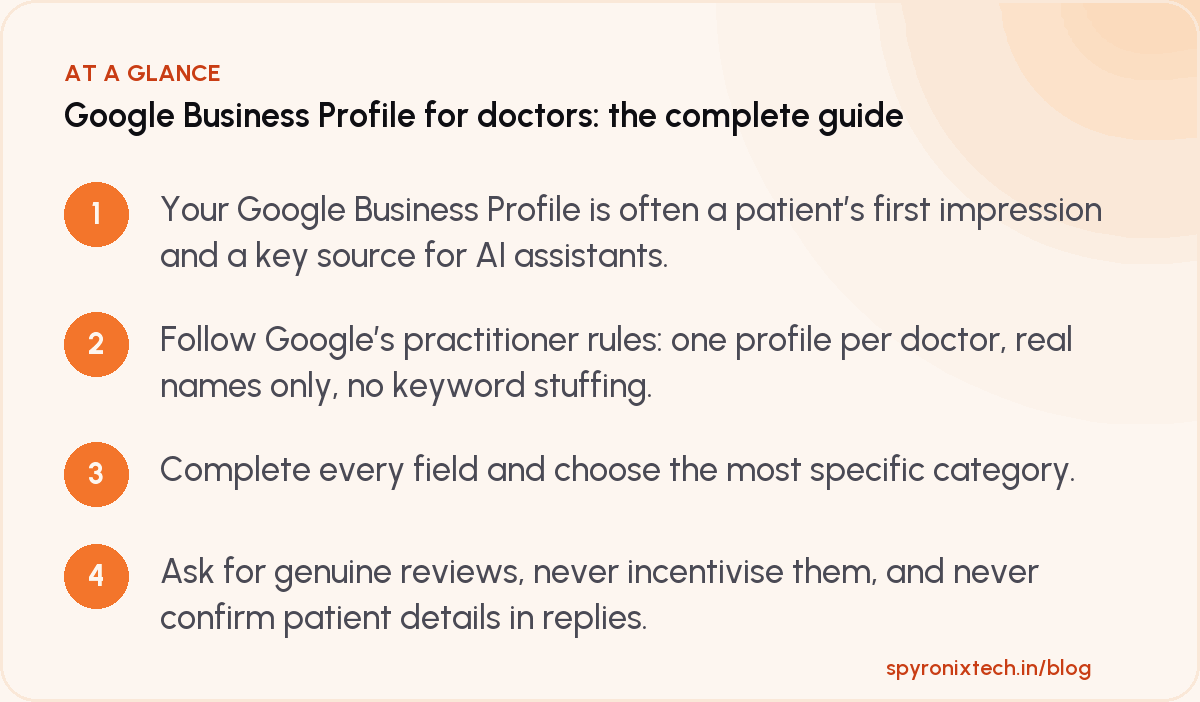
- Your Google Business Profile is often a patient’s first impression and a key source for AI assistants.
- Follow Google’s practitioner rules: one profile per doctor, real names only, no keyword stuffing.
- Complete every field and choose the most specific category.
- Ask for genuine reviews, never incentivise them, and never confirm patient details in replies.
- Keep your name, address and phone identical everywhere online.
Frequently asked questions
Is a Google Business Profile free?
Yes. Creating and managing a Google Business Profile is free. Google Ads, which can appear alongside it, are a separate paid product.
Can a doctor have profiles at two clinics?
If a doctor is publicly available at two separate locations during stated hours, each location can generally be listed. Check Google’s current practitioner guidelines for your exact situation.
Can I remove a bad review?
You cannot remove a genuine review just because it is negative. You can report reviews that break Google’s policies, such as fake reviews or ones with offensive content.
Was this guide useful?
Let us know with a reaction. It's anonymous.
Share it with someone who needs it
Sources
- Guidelines for representing your business on Google, Google Business Profile Help
- Maps user-generated content policy: fake engagement, Google
Written by Team Spyronix, Pune. Last reviewed .